How to Setup a POP3 account in Microsoft Outlook Client
Open your Microsoft Outlook
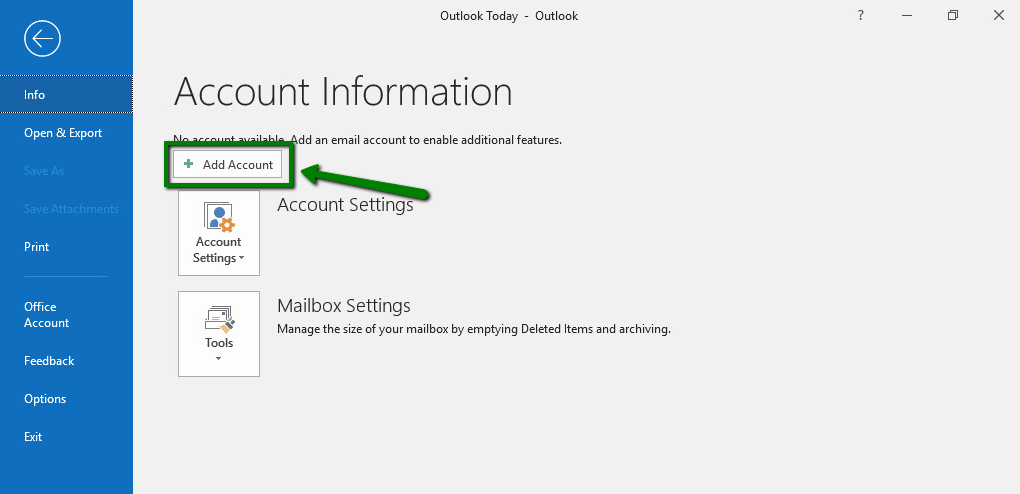
1) From Top left menu, click on FILE > make sure that Info is selected on the left > click on Add Account.
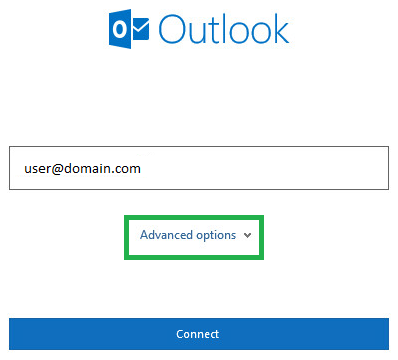
2) Enter your full email address > click on "Advanced options" > Select "Let me set up my account manually". Then click Connect.
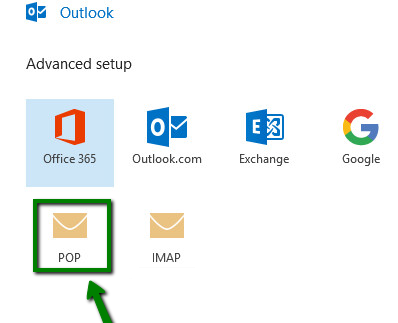
3) Choose account type, select POP.
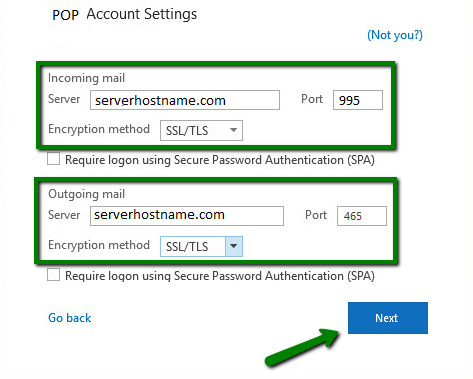
4) Now enter your Incoming and Outgoing settings.
NON-SSL
Incoming mail server: mail.domain.com
Outgoing mail server: mail.domain.com
Incoming Port no. POP : 110
Outgoing Port no. SMRP : 26
SSL Type / Encryption Method : None
SSL
Incoming mail server: domain.com
Outgoing mail server: domain.com
Incoming Port no. POP : 995
Outgoing Port no. SMRP : 465
SSL Type / Encryption Method : SSL
5) Enter password for your email address
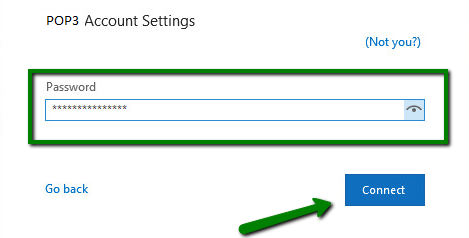
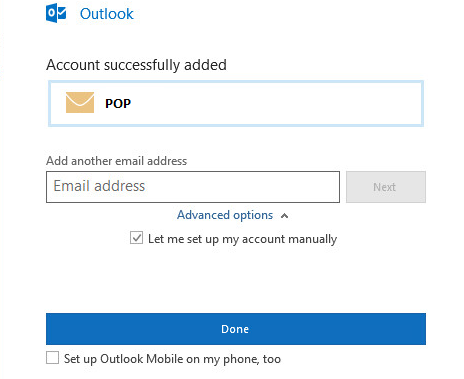
6) Account setup is complete.